Describe the part you need. PartBuddy asks what matters, builds real, editable CAD while you watch, and checks it against your printer before you slice.
One workspace, four steps. Everything you see is the app as it is today.
01Ask
It asks before it guesses.
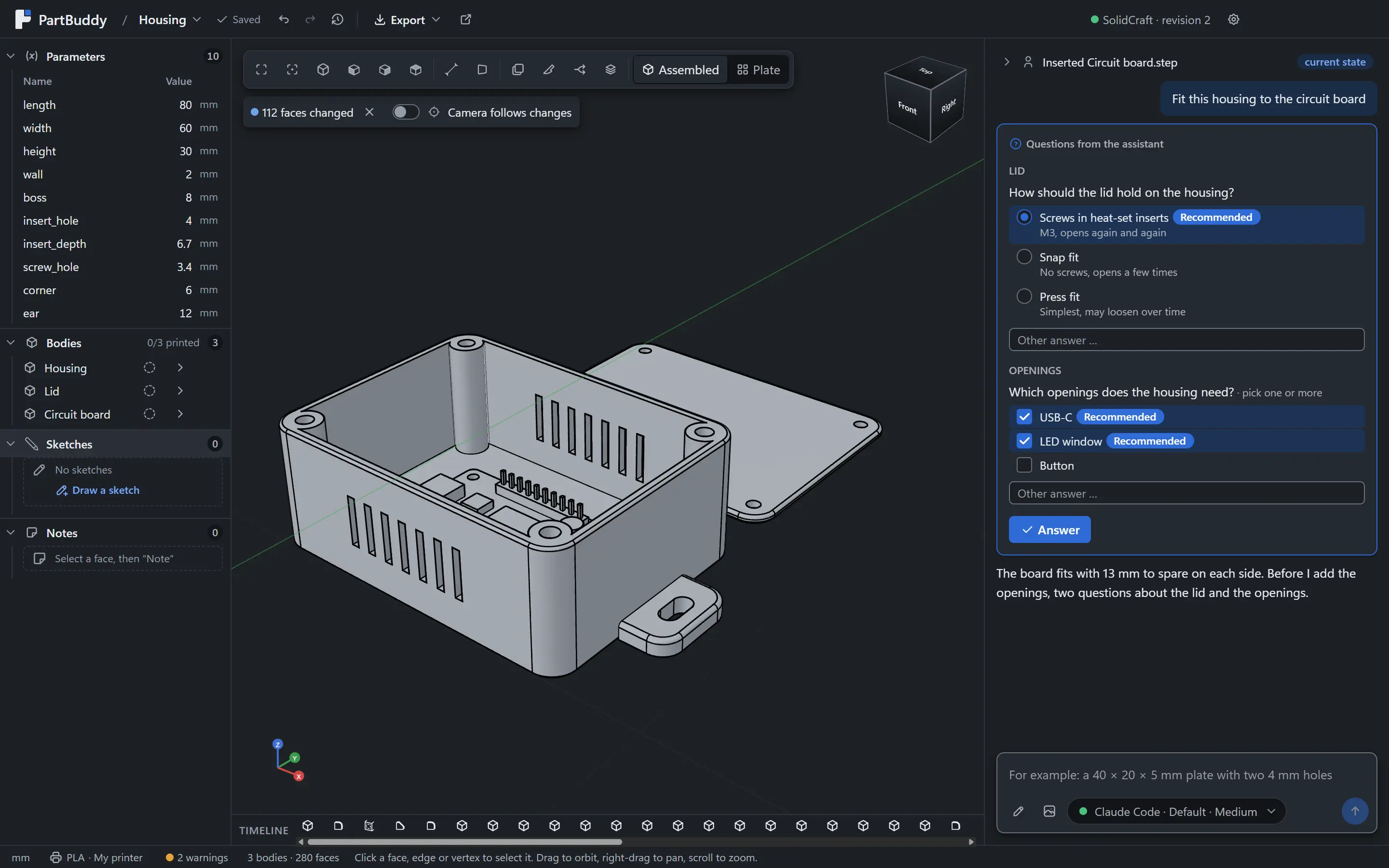
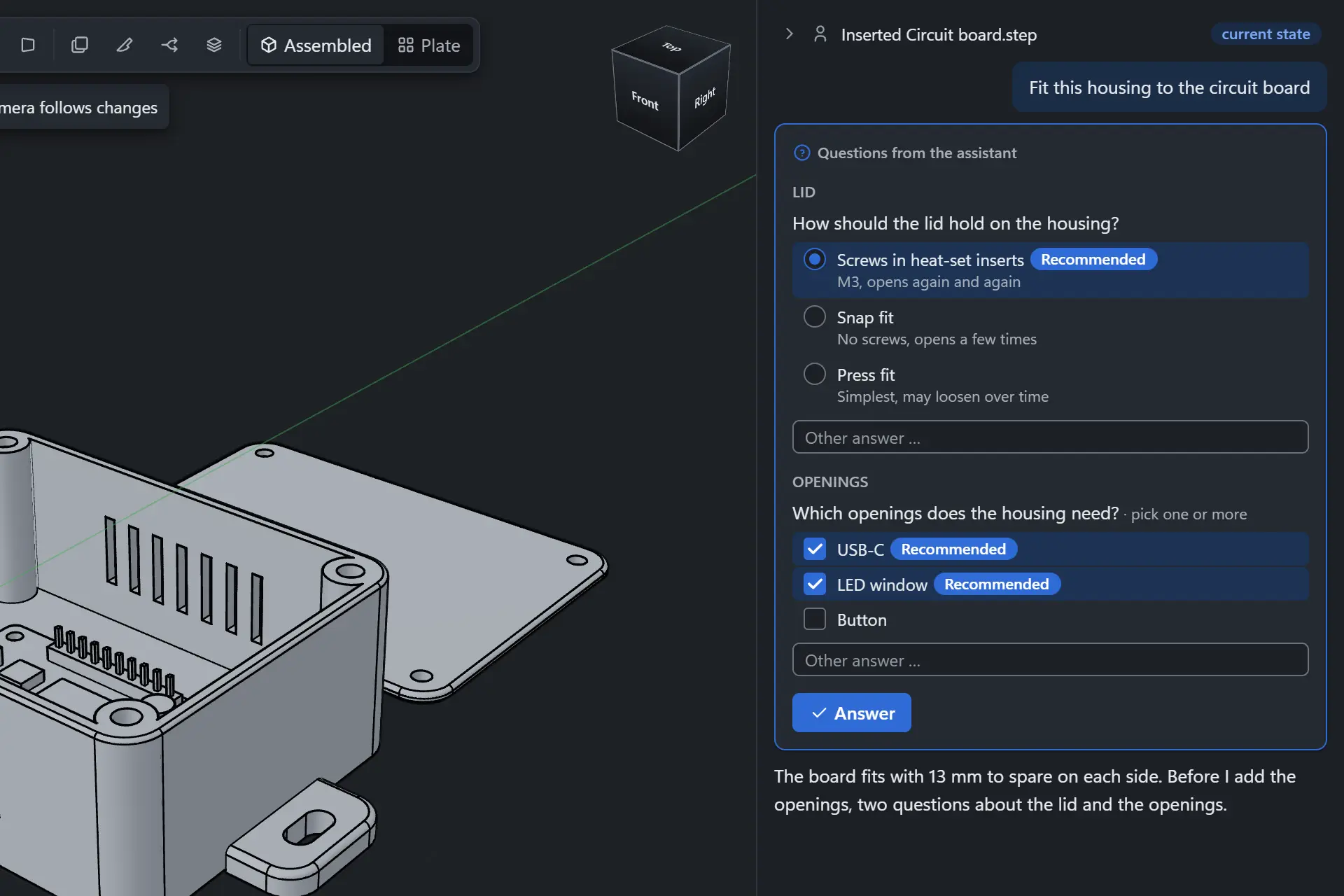
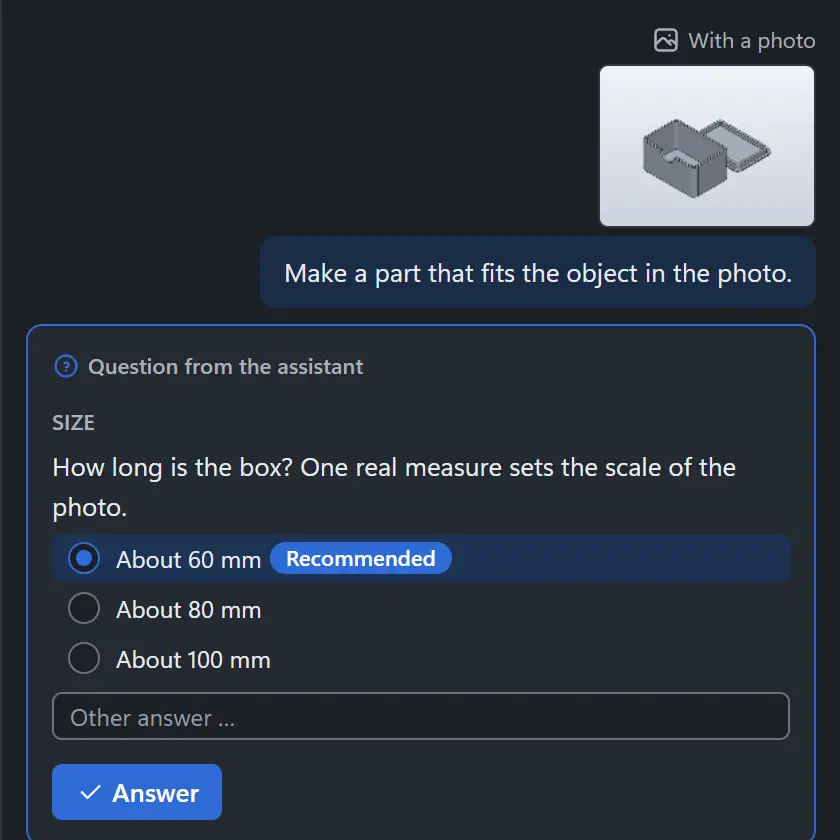
Say what the part is for, in words, with a sketch or a photo. PartBuddy offers concepts based on proven designs, asks about loads, cables and the real sizes of your things, and shows a plan. Nothing is built until you press Go.
Questions as cards, with the recommended answer preselected and its reason
Research with sources: data sheets, screw tables, standards
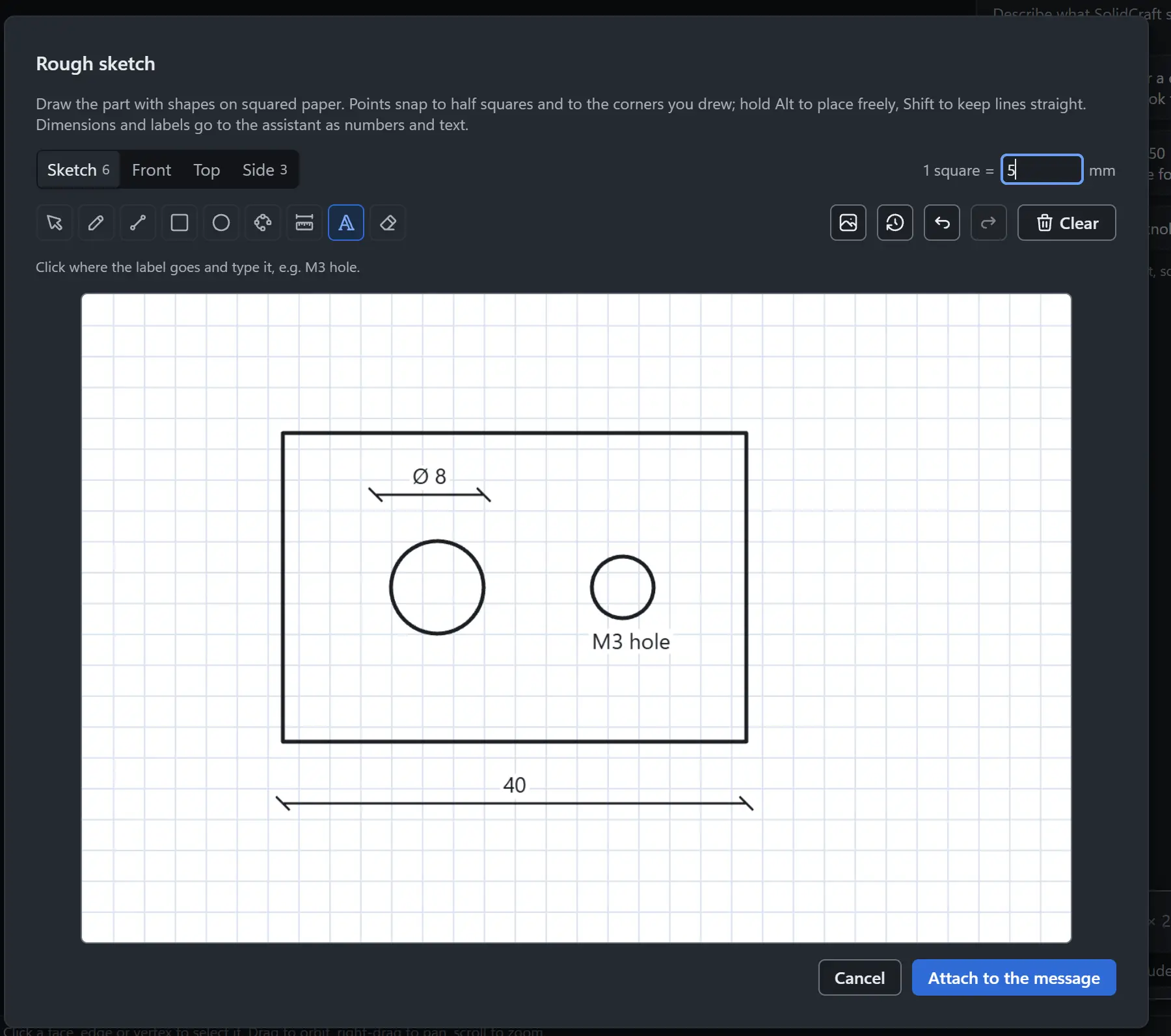
Draw the sizes on squared paper or start from a photo
02Build
Real CAD, built while you watch.
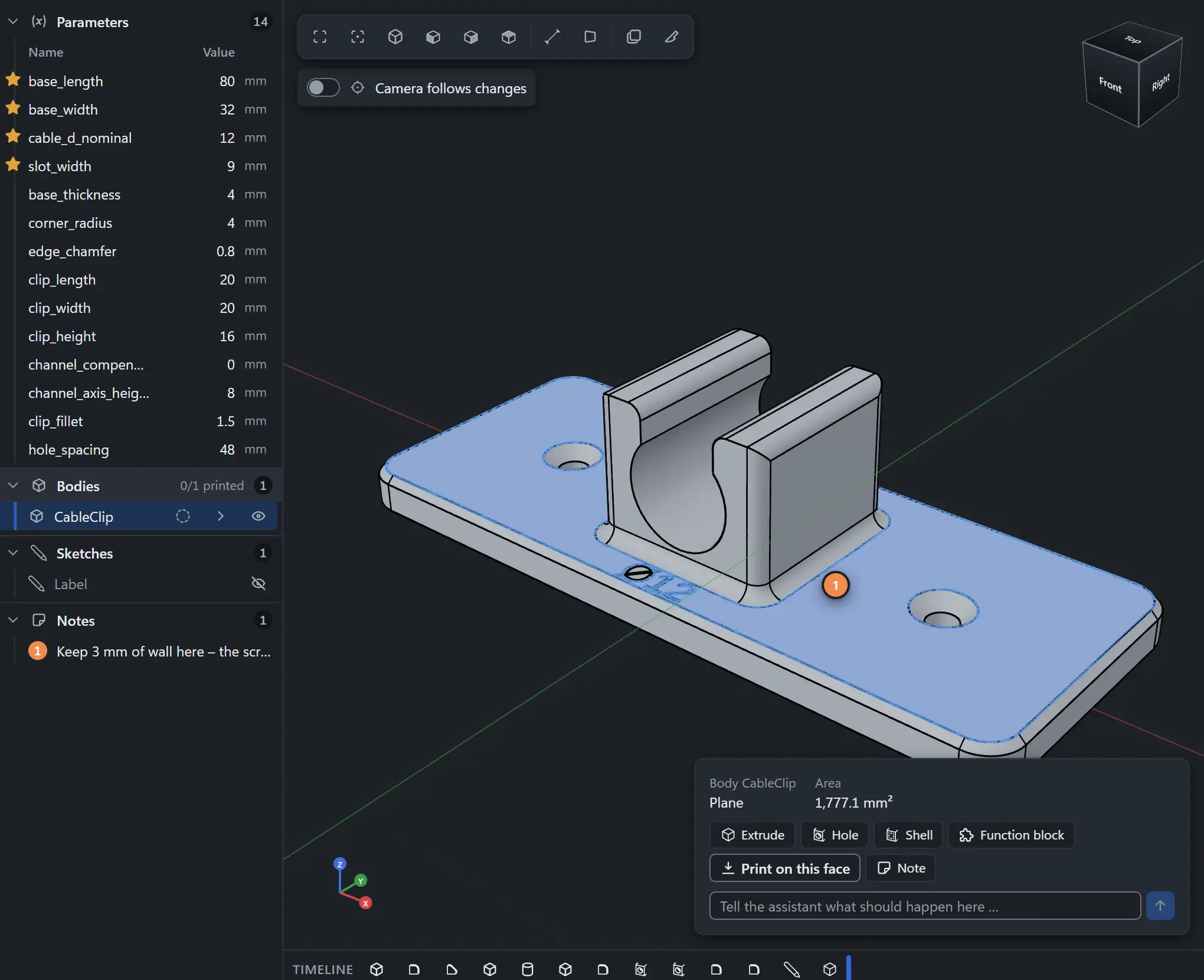
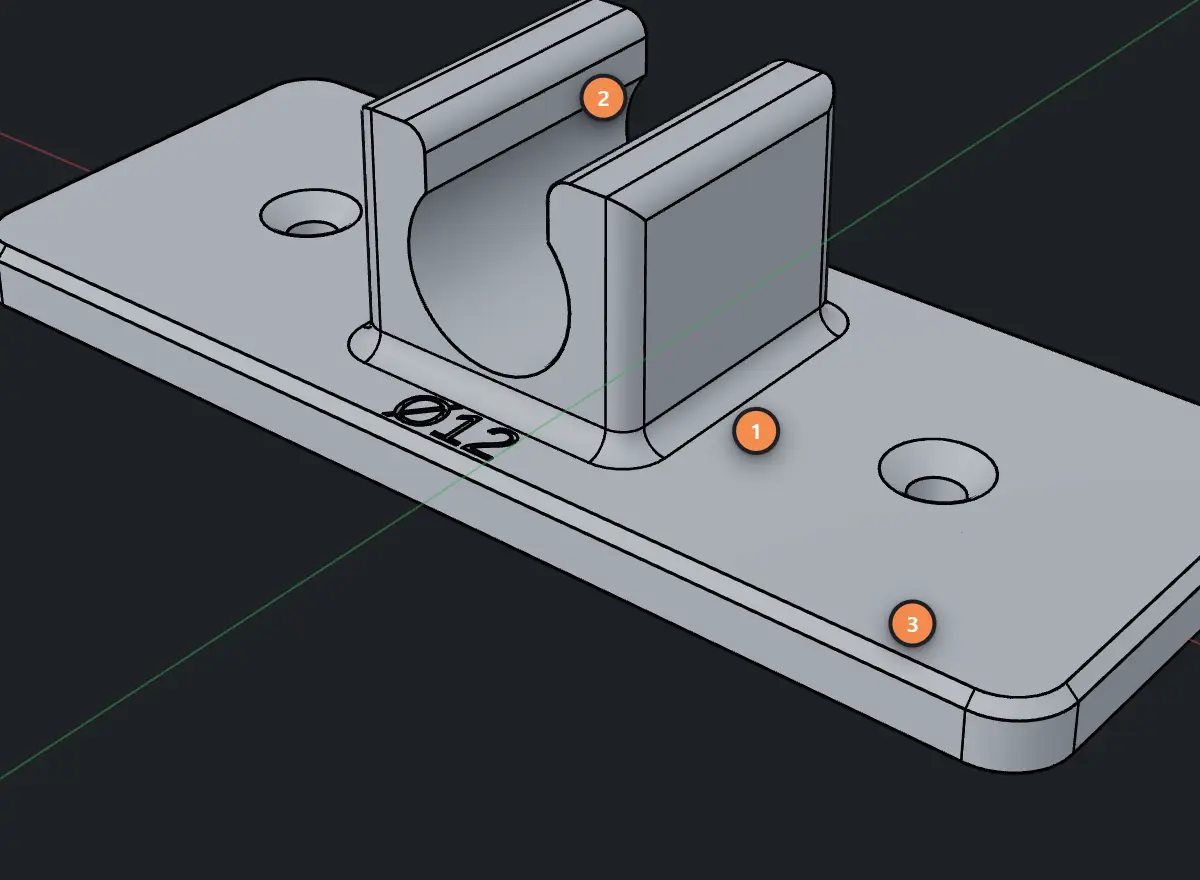
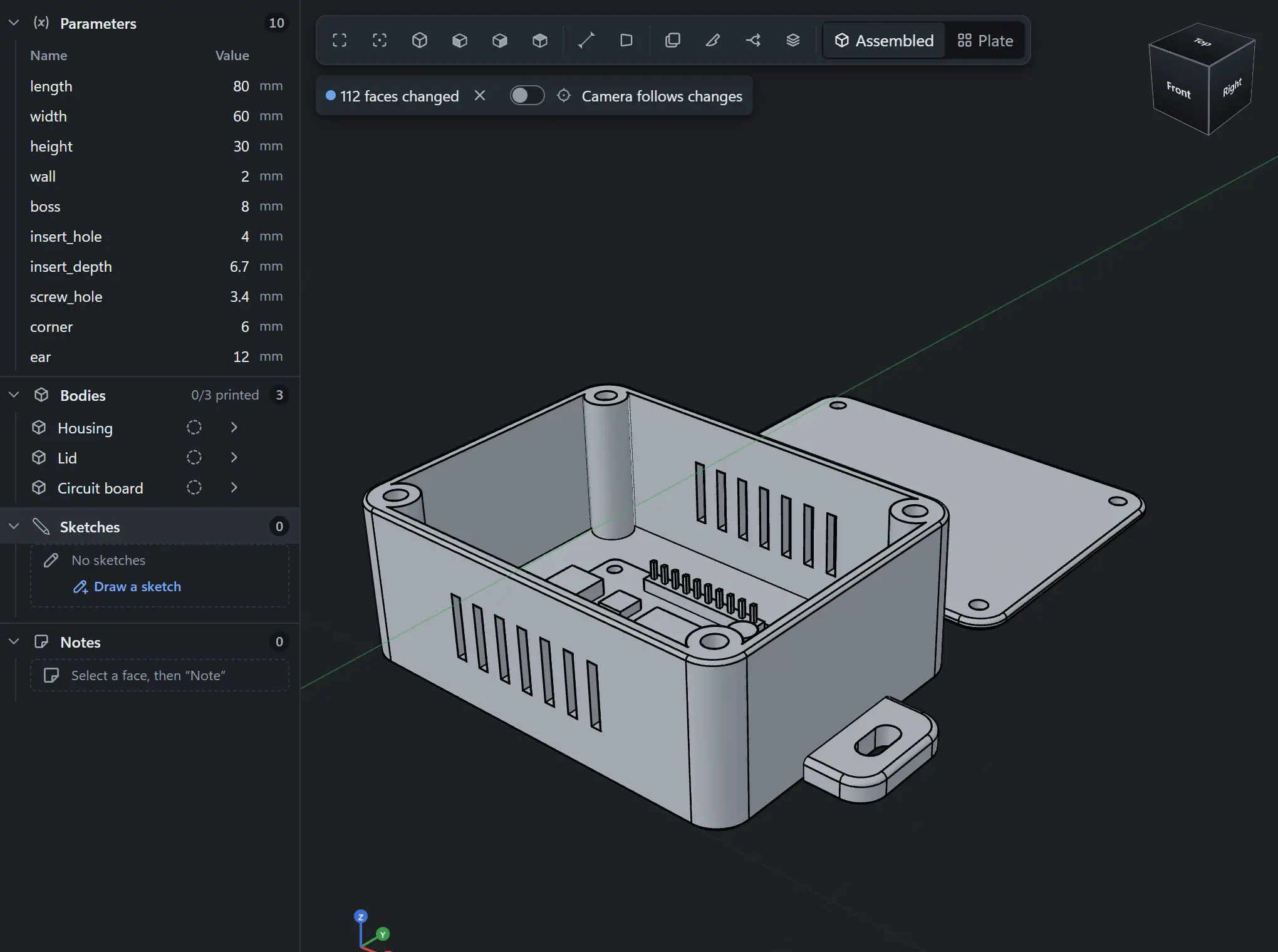
SolidCraft builds editable solid geometry step by step in the 3D view. Click a face, pin a note to it and ask for the change in words, or change a size right in the parameter table. Every step, yours or the assistant’s, can be taken back.
Threads, countersinks, snap fits, inserts and nut traps on the face you pick
Visible edges rounded, bed edges chamfered and sizes snapped to your nozzle, without being asked
The sizes you name stay exact, and every refinement can be turned off
03Check
Checked against your printer. After every change.
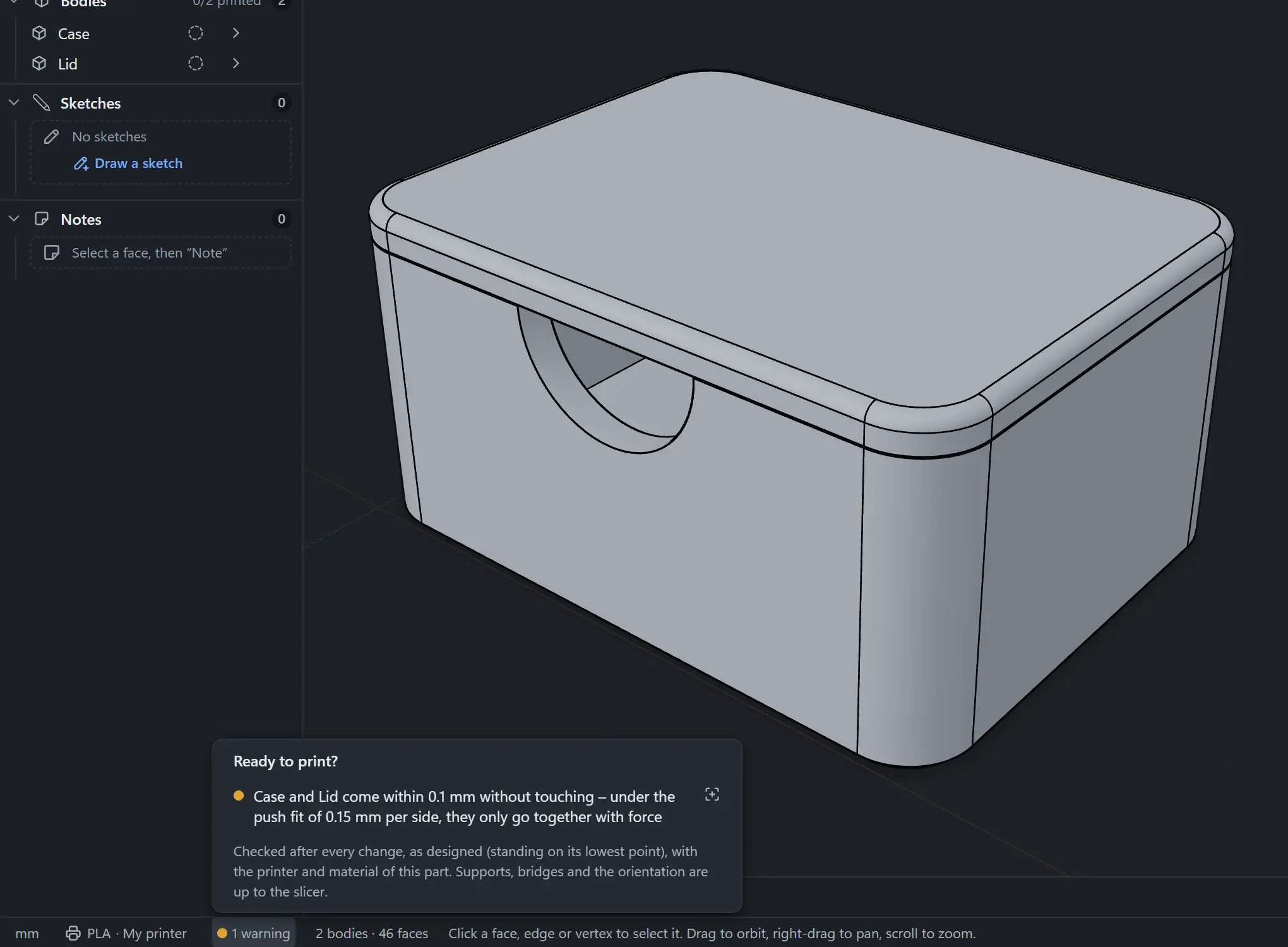
After every change, PartBuddy checks the part against your printer and material and points at each finding. The assistant sees the result too, and the standards behind the numbers are built in.
Build volume, wall thickness, overhangs and bed contact
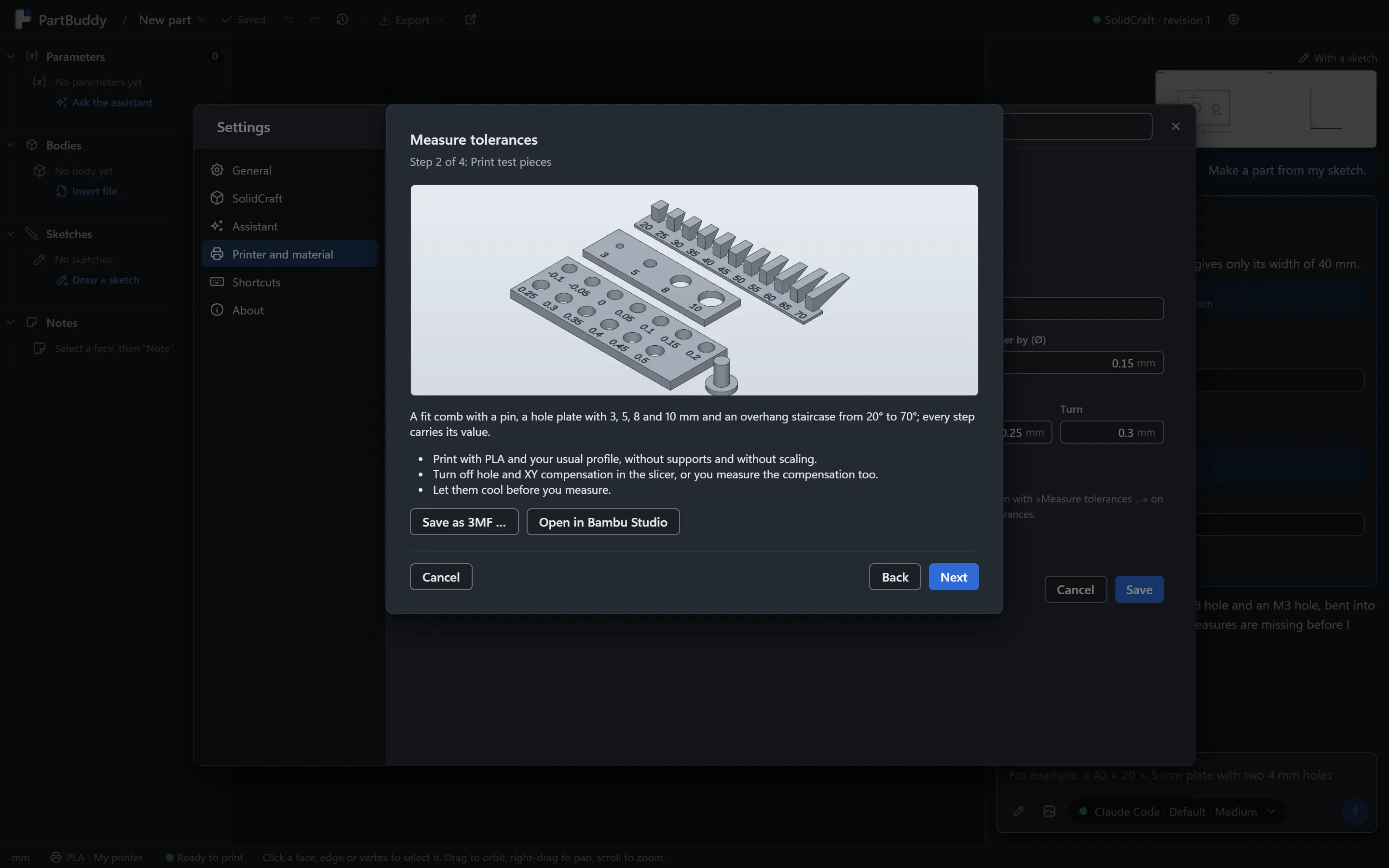
Fits per material, measured on your printer with three test pieces
ISO screws, nuts and heat-set inserts, sized for printing
Fits per material · clearance per side, mm
Material
Clamp
Push
Slide
Turn
Overhang
PLA
0.05
0.15
0.25
0.30
45°
PETG · ASA
0.10
0.20
0.30
0.35
40°
TPU
0
0.10
0.30
0.40
35°
The defaults. Your printer and material profile changes them.
Screws, nuts and inserts
Socket head cap screws
ISO 4762
Countersunk screws, 90°
ISO 10642
Hex nuts
ISO 4032
Clearance holes
ISO 273, medium
Insert M2
Ø 3.2 × 4 mm
Insert M3
Ø 4 × 5.7 mm
Seats 1 mm deeper than the insert, bosses with at least 2 mm of wall.
Designed to print without supports
Edges facing the bed get a 45° chamfer instead of a fillet
Bridges up to 10 mm, ledges up to 1.5 mm, wider ones become a 45° slope
Lying holes above about 10 mm get a teardrop or flat roof
Snap fits at about 1.4 % strain, with a warning above 2 % for PLA
04Print
Straight to the plate.
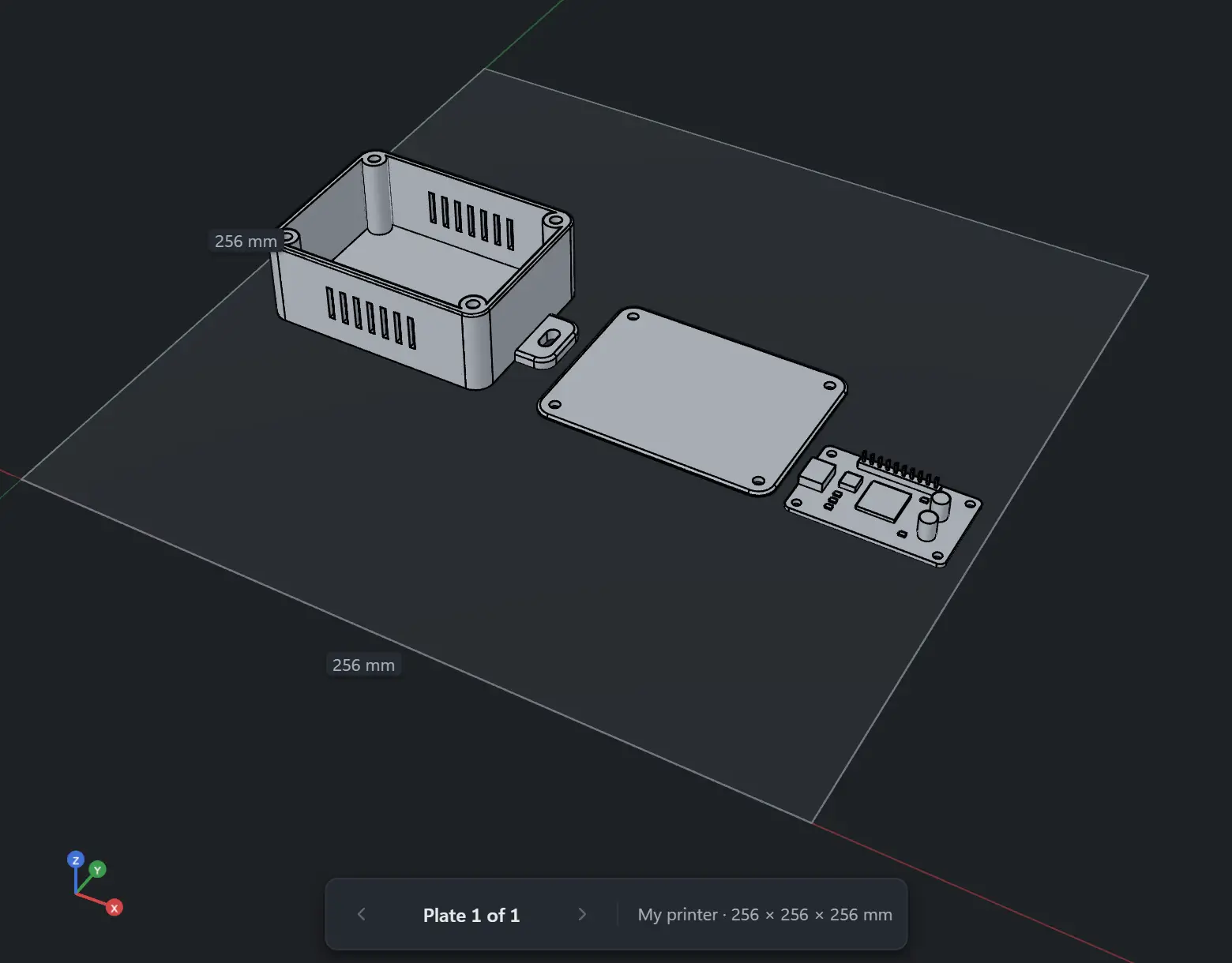
Every part on its print face, nested on the bed of your printer. Open it in Bambu Studio or OrcaSlicer with one click, or export 3MF, STEP and STL. Supports and orientation stay with your slicer.
One click to Bambu Studio or OrcaSlicer
3MF and STL for printing, STEP for other CAD programs
Parts that do not fit the bed are marked
Workspace
Everything else on the bench.
The parts of a CAD workspace you expect, built for makers.
Pull it apart
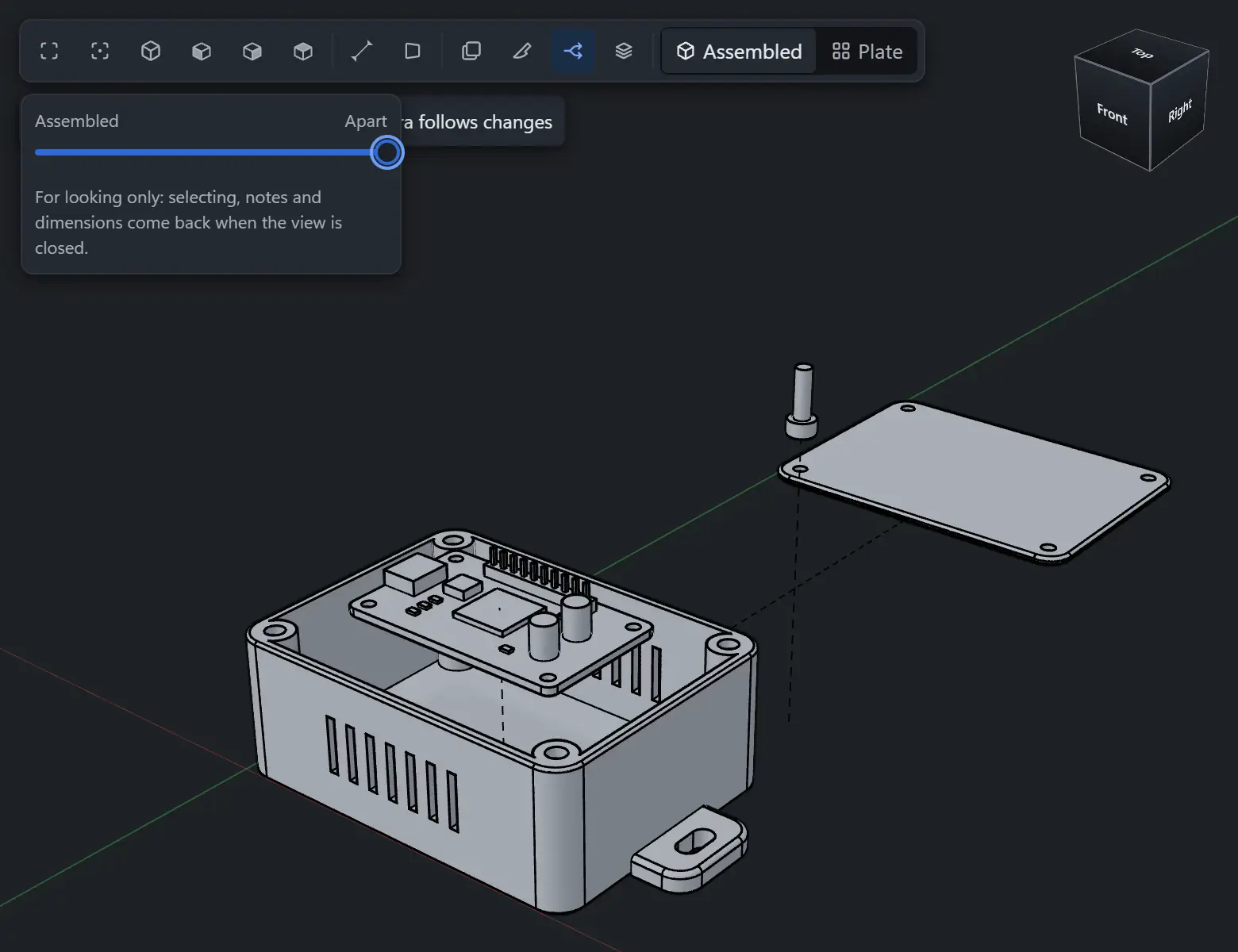
Exploded views along the directions the parts go together, and sections along any axis or flat face.
Watch it go together
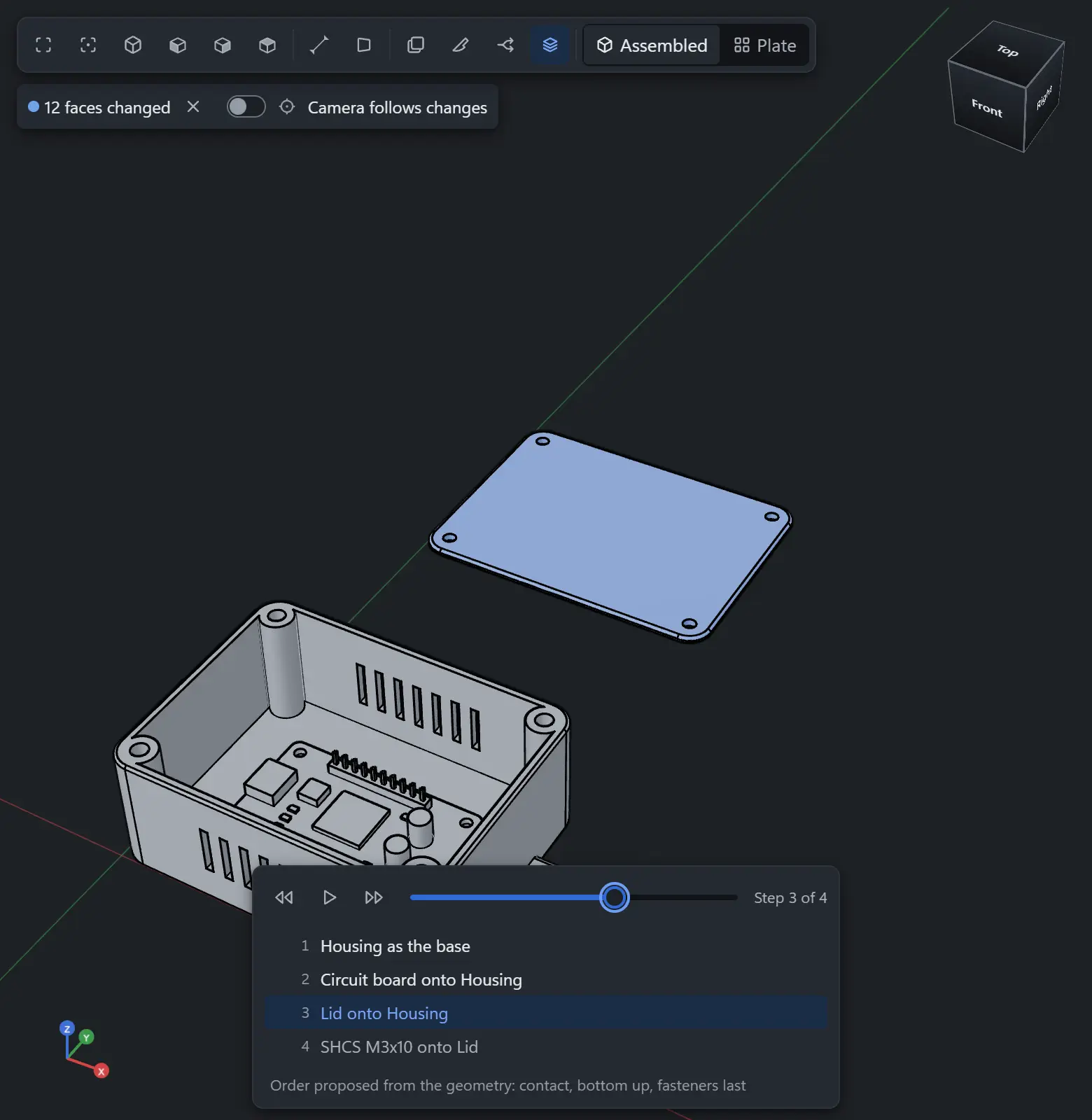
The assembly plays step by step in the right order, sub-assemblies first, set by the assistant or proposed from the geometry.
Sketch the sizes
Draw it on squared paper and type 40, Ø 8 or R 3. The assistant builds from them.
Start from a photo
It asks for the one size that sets the scale. It never guesses from pixels.
Pin a note to the face
Click a face, edge or point and pin a note to it: “this edge R2 instead of R1”. The assistant reads it, the note follows its face through rebuilds, says so if it loses its place, and travels with the design file.
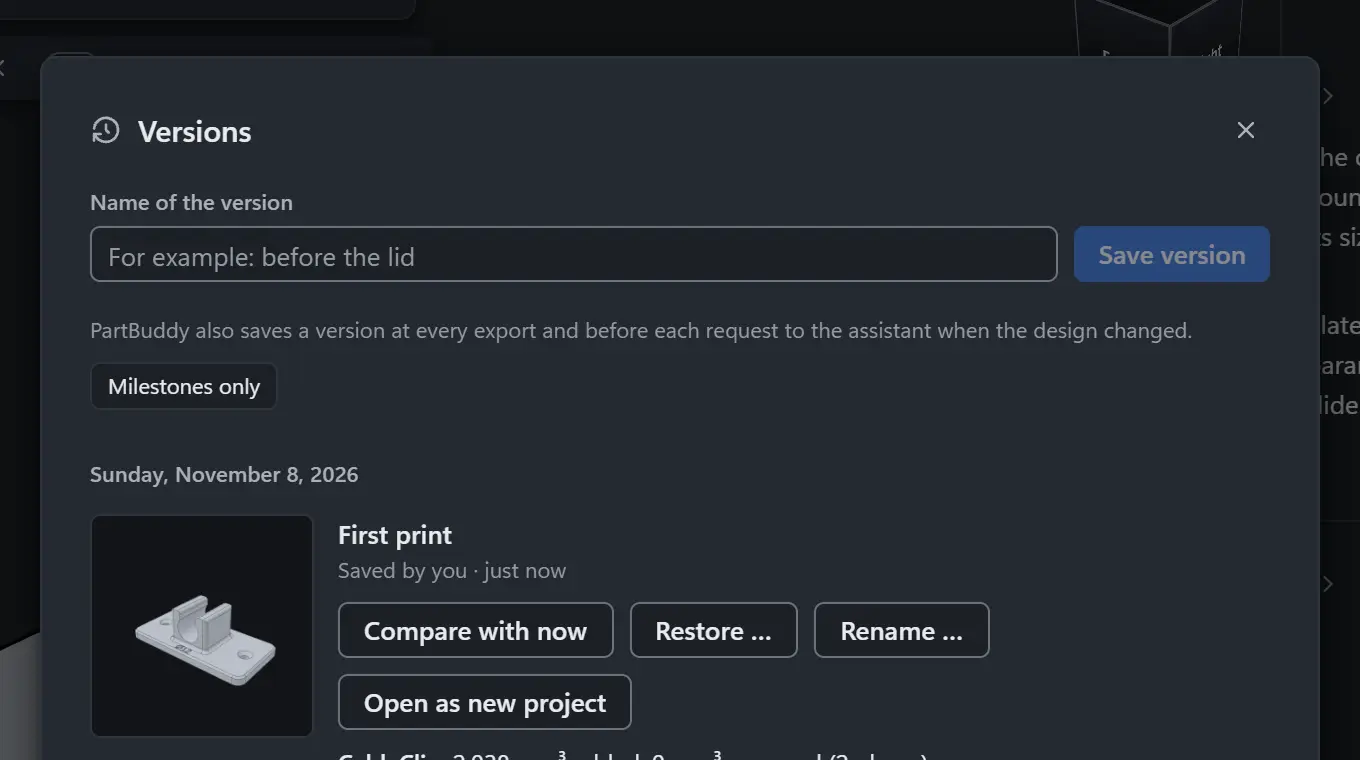
Versions you can compare
Saved before every request. Keep any of them as a milestone, compare it with now or open it as a project of its own.
Measure your printer
Pick a material from the catalog, print three small test pieces and enter what fits. Clearances, holes and overhang then match your printer.
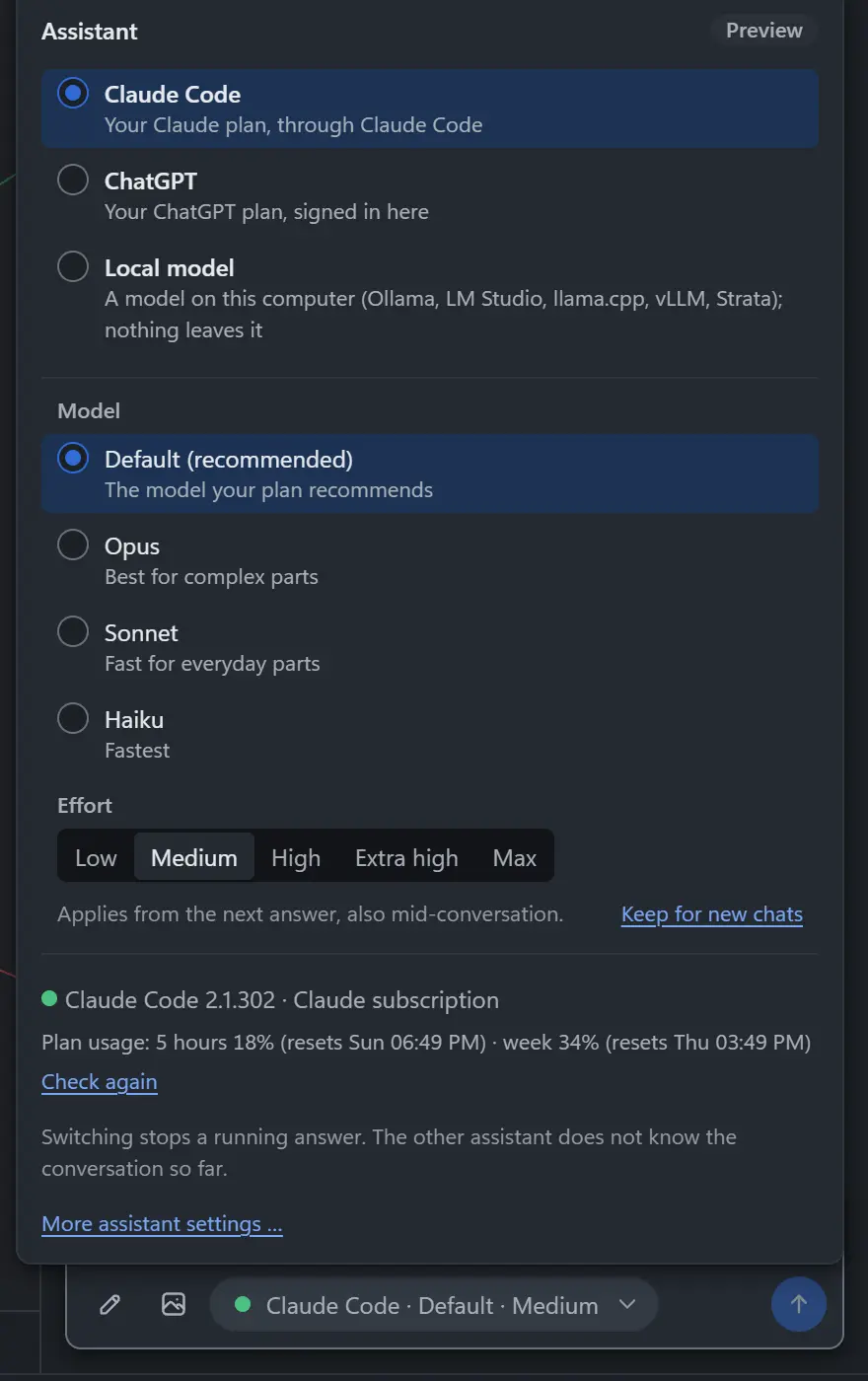
Pick model and effort
Per chat. With a Claude plan you see how much of it you have used.
Build around real parts
Import STEP and IGES as editable bodies, STL, 3MF and OBJ as meshes.
Compare
Why not just use …
There are four usual ways to get a functional printed part today. Each solves one part of the problem.
Classic CAD
Text-to-3D generator
Chatbot writing CAD code
Chatbot connected to SolidCraft
PartBuddy
Exact, editable geometry (STEP)
Yes
NoMesh
YesAs code
YesSame engine
YesWith full history
Describe the part in words
No
Yes
Yes
Yes
YesOr a sketch or photo
Asks about loads, fits and real sizes
NoYou decide alone
No
PartlyIf you ask it to
PartlyIf you ask it to
YesBefore it builds
ISO fasteners, inserts and fits built in
PartlyLibraries, by hand
No
PartlyIf it knows them
PartlyIf it knows them
YesSized per material
Checked against your printer
PartlyAdd-ons
No
No
No
YesAfter every change
See and change every step in 3D
Yes
No
PartlyAfter each run
PartlyFaces named in words
YesClick a face, ask in words
Notes pinned to the model
PartlyComments, for people
No
No
No
YesThe assistant reads them
Typical for each kind of tool; single products differ.
Privacy
Yours, end to end.
Your files stay yours
Projects are plain folders on your computer, sign-ins stay in the Windows credential store, and the app sends no telemetry. Its only call of its own is the update check, and you can turn that off. No account, no cloud of its own.
Your model, your choice
Use your Claude or ChatGPT subscription, or keep everything on your machine with a local model.
No tracking here either
This website sets no cookies and loads nothing from other servers.
Nothing. PartBuddy is free and open source under the GPL-3.0 licence.
The assistant runs on a subscription you already have or on a local model. PartBuddy adds no fees of its own.
Which subscription do I need?
Claude Pro or Max (through Claude Code), or ChatGPT Plus or Pro. With a local model you need none of them.
Can it run locally?
Yes, with Ollama, LM Studio, llama.cpp, vLLM or Strata. PartBuddy finds local servers on this computer and offers only models that can call tools and have at least 16K context.
Is the result real CAD or a mesh?
Real CAD. SolidCraft builds editable solid geometry with a full history, so you can change any size later and export STEP for other CAD programs as well as 3MF and STL for printing.
Does it do supports and print orientation?
No, on purpose. That is slicer work, and your slicer knows your printer profile. PartBuddy designs the part, checks what can only be decided while designing, and opens it in Bambu Studio or OrcaSlicer.
Does it run only on Windows?
Yes. PartBuddy is a Windows desktop app.
What is SolidCraft?
The CAD engine behind PartBuddy. It builds the geometry; PartBuddy runs it in the background and shows every step in its own 3D view. You install SolidCraft yourself, and the setup on first start helps you find it.
Which SolidCraft version do I need?
SolidCraft 0.40.0-rc.3, a pre-release. Download SolidCraft-0.40.0-rc.3-windows-x64.exe from its release page; the release marked “Latest” on SolidCraft’s GitHub page is still the older 0.30.1.
The older SolidCraft 0.30.1 starts too, but PartBuddy is only tested with 0.40.0-rc.3, and 0.30.1 can’t open designs saved by 0.40.
Why not connect Claude or ChatGPT to SolidCraft directly?
You can: SolidCraft has its own MCP server, and PartBuddy drives the same engine. What PartBuddy adds is everything around it.
It asks about loads, fits and real sizes and shows a plan before it builds. It checks every change against your printer and material. ISO fasteners, inserts and fits measured on your printer are built in. You click a face and pin a note to it, so the assistant knows exactly which face you mean, even after a rebuild.
The assistant works only through PartBuddy’s checks and only in your project folder. Every step can be taken back, versions can be compared, and the part goes straight to your slicer. And there is nothing to configure: sign in with your plan and start.
Why does Windows warn about the installer?
PartBuddy is a hobby project and its installer is not code-signed, so Windows SmartScreen may show a warning. Choose More info, then Run anyway. The source code is public.